
While Salesforce has been steadily encouraging users to transition to Lightning Experience, there are still several features and administrative operations that remain exclusive to Salesforce Classic. These functionalities, ranging from specific setup options, certain customization capabilities, to legacy tools—are not yet fully supported or accessible in Lightning. This article will list some of them that you might find helpful.
Table of Contents
Easily Share a File with All Users in Your Org
If you view a file in lightning, you will find it impossible to share it to all the users directly but to certain people or groups at one go.
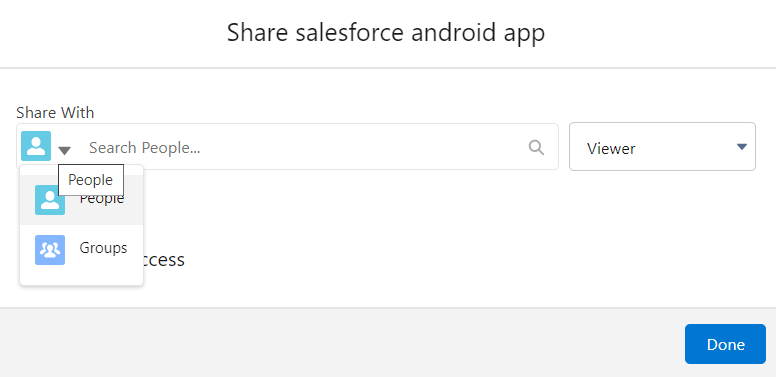
If you want to make it public to everyone in your org, simply view the file in Classic, where you can see File Sharing Settings.

Through Classic File Sharing Settings, you can directly share it with any user in the company as one option.
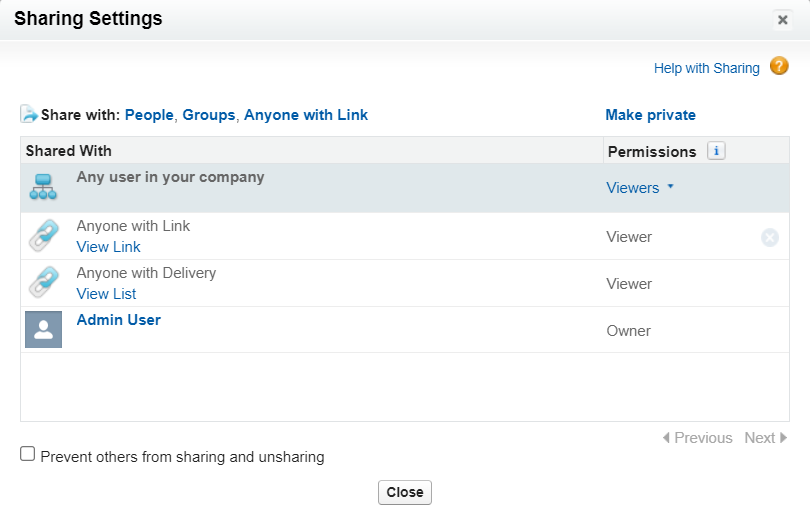
Reference: File sharing setting for ‘Any User in your company’ is not available in Lightning
Classic Report Subscriptions Can Be Extended with Custom Actions (via Apex Coding)
In Salesforce Classic, subscribe to a report to receive report notifications periodically when the metrics you care about most meet certain conditions. Set the conditions that trigger notification, and specify if you want to be notified via Salesforce app notifications, Chatter, or email.
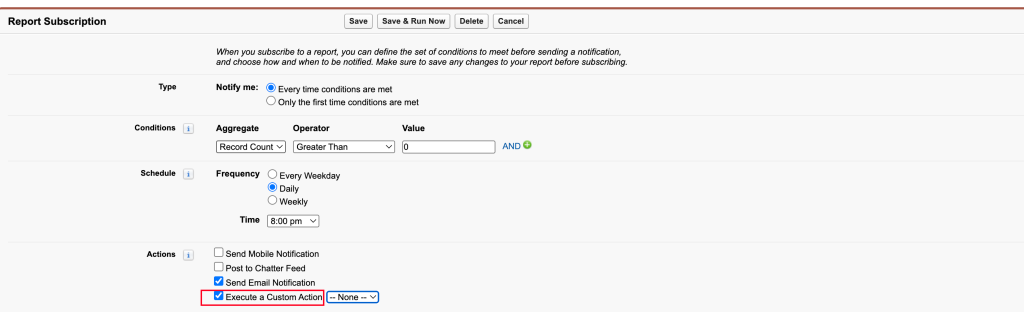
Apex Code Samples:
public with sharing class MyReportNotification
    implements Reports.NotificationAction {

    public void execute(Reports.NotificationActionContext context) {
        // Context parameter contains report instance and criteria
        Reports.ReportResults results = context.getReportInstance().getReportResults();
        // In the above subscription case this is the 'Record Count'
        System.debug(context.getThresholdInformation().getEvaluatedConditions()[0].getValue();
        // You can also access the report definition!
        System.debug(results.getReportMetadata().getName());
    }
}
Reference: Subscribe to Get Report Notifications in Salesforce Classic
Mass Approve/Reject in the “Items to Approve” List View Available Only in Classic
On home page in Classic, Items to Approve section is available
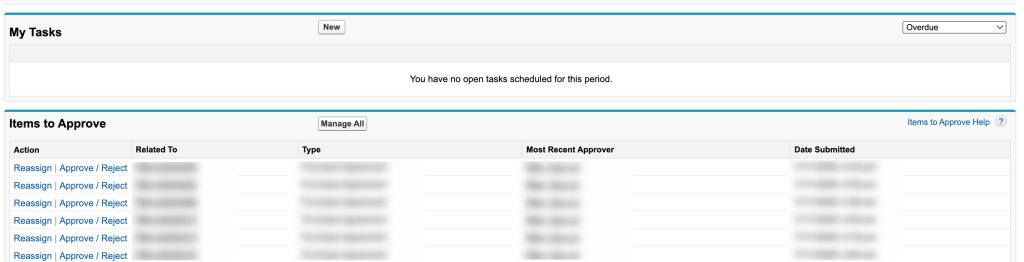
You can perform mass actions on pending approval requests on Items to Approve list view, with checkboxes to select multiple records at one go.
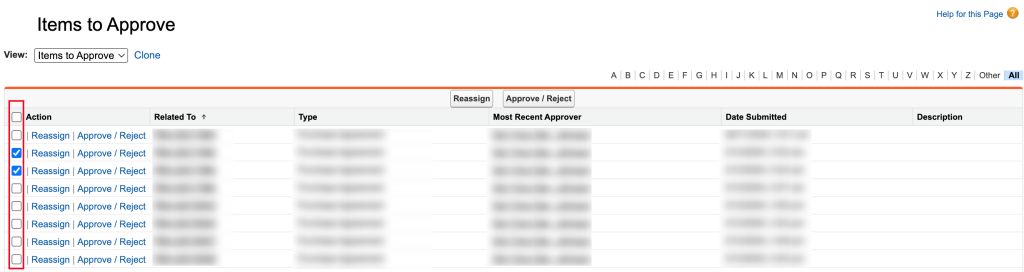
Salesforce Idea: Mass approve/reject in “Items to Approve” list view in Lightning experience
Learn more on Solutions to Mass Approve/Reject Approval Requests in Salesforce Lightning
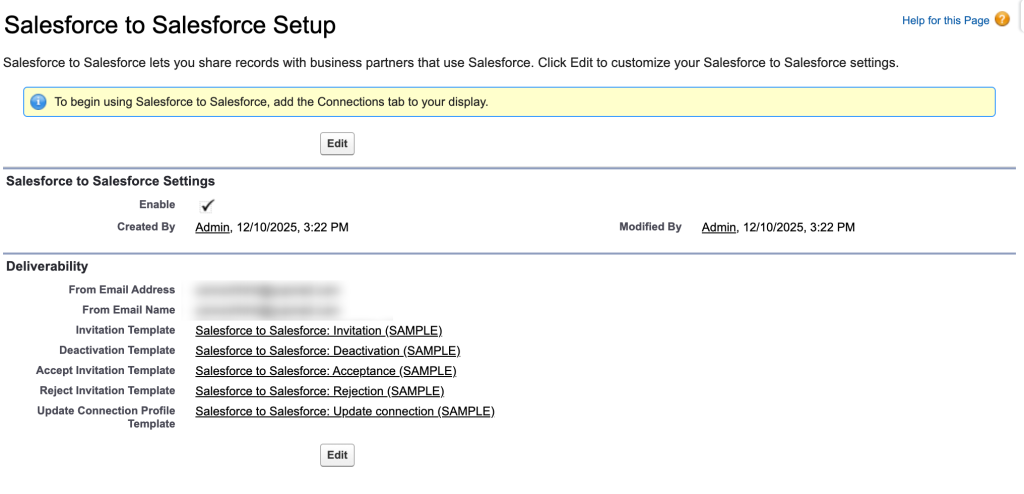
Salesforce to Salesforce Setup Can Only Be Found in Classic
In Salesforce Lightning, Salesforce to Salesforce is not supported and cannot be found in lightning setup.

You need to switch to Classic setup to edit Salesforce to Salesforce settings if you still rely on this function.
Similar Opportunities Can Only Be Available in Classic
This feature allows a user to search for opportunities that share common fields with the user’s opportunity. Once enabled, a Similar Opportunities related list appears on the opportunity record.
Allow users to find Closed – Won opportunities that match the attributes of an opportunity they’re currently working on, so they can quickly access information that can help them close their deals.
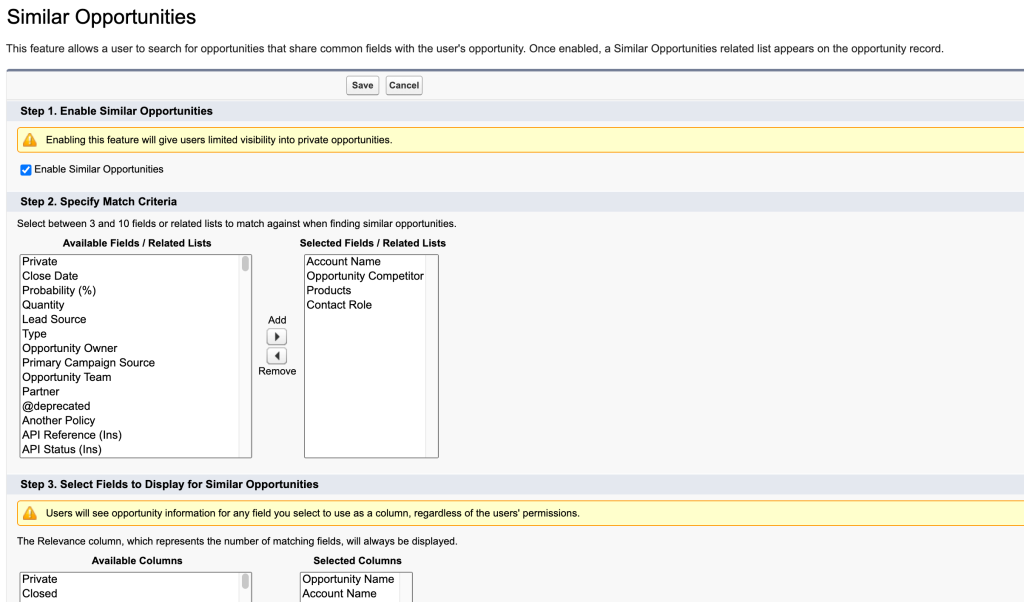
Reference: Enable and Configure Similar Opportunities
Third party app as alt on AppExchange by Salesforce Lab: Similar Opportunity Finder
Ideas Can Only Be Available in Classic
It’s important to note that the Ideas object in Salesforce is only accessible in Salesforce Classic, and users cannot access it in Lightning Experience (LEX) user interface. Consequently, when Lightning users want to utilize Ideas to gather feedback, they are required to switch back to the Classic version, a process that can be quite daunting and time-consuming.
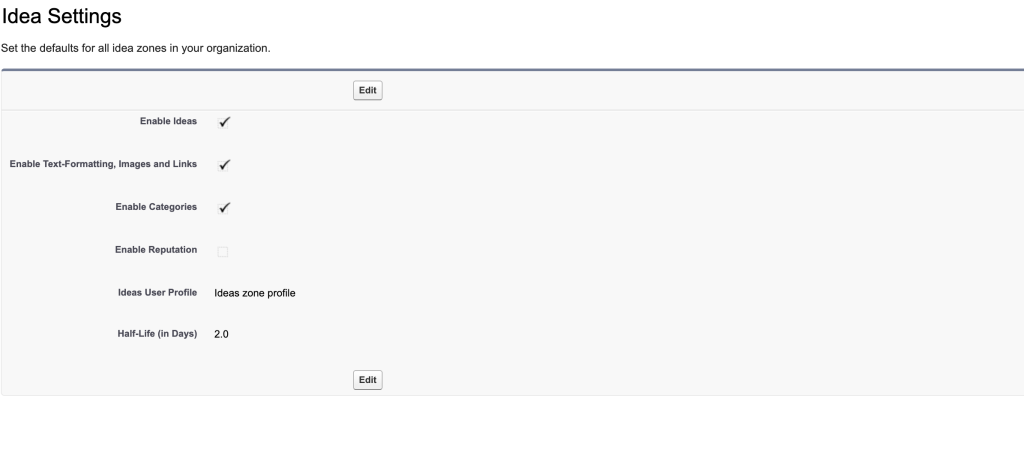
In Classic, users can create ideas, vote for them, and participate in discussions. Enabling Ideas provides a transparent, collaborative way to gather and manage feedback.
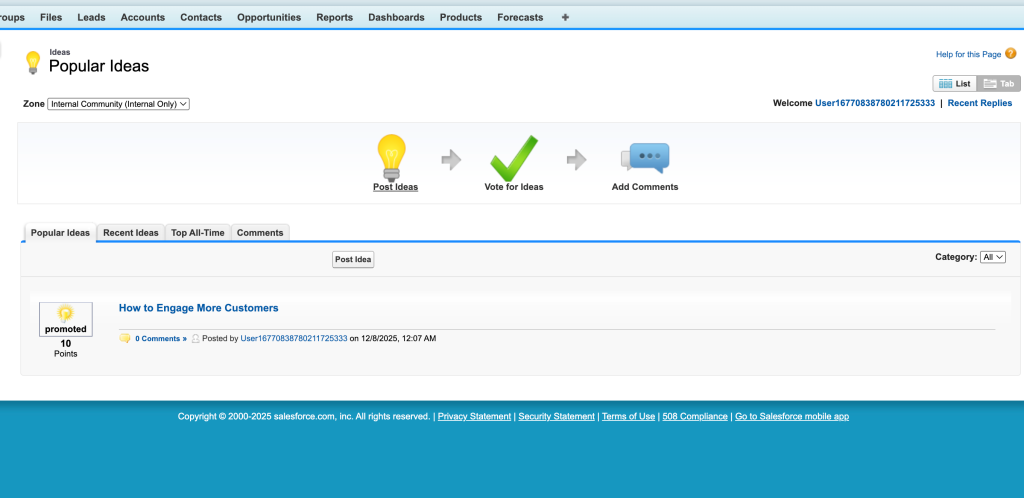
Reference: Enable and Customize Ideas Settings
Thx for sharing!