Salesforce List Views are probably at the center of daily CRM operations. Sales reps, admins, and managers rely on them to quickly access filtered data, yet one basic capability is still missing:
There is no simple, native way to export the data of a Salesforce List View directly to Excel.
Why Exporting Salesforce List Views Is Still a Pain
If you’ve used Salesforce long enough, you’ve probably faced this problem:
- You need the exact data shown in a List View
- You want it in Excel
Unfortunately, Salesforce doesn’t provide a built-in button to export data from a list view, but offers these common workarounds (and their problems):
- Reports
Rebuilding filters and columns takes time and often doesn’t match the List View exactly. - Printable View
Not Excel-friendly and inconvenient for real analysis or sharing. - Copy & Paste
Manual, slow, and prone to errors.
Simple Solution: A Utility Bar App to Export Salesforce List View to Excel in One Click
Key Features
- ✔ Export Salesforce List View from any standard and custom objects to Excel
- ✔ Column names match Salesforce exactly, even when translation is enabled
- ✔ Data values are identical to what’s displayed on screen
- ✔ One-click download, up to 50,000 records in a single download, instead of repeatedly scrolling through Salesforce List Views that only display a few dozen records per page
How It Works
This app is added as a Utility Bar component, which makes it both powerful and easy to use, you only need to add this utility bar app into a Lightning app for end users.
- Add it once
- Access it directly from any List View page of standard and custom objects, and instantly download the Excel file
How to Set Up
1. Install the app, you can choose for admins only (to accurately control and grant access to a specific group of users with a built-in permission set later) or for all users (if every user should have access).

2. Go to Setup, search for App Manager, and select the Lightning apps where different end users work daily, like the Sales app below:
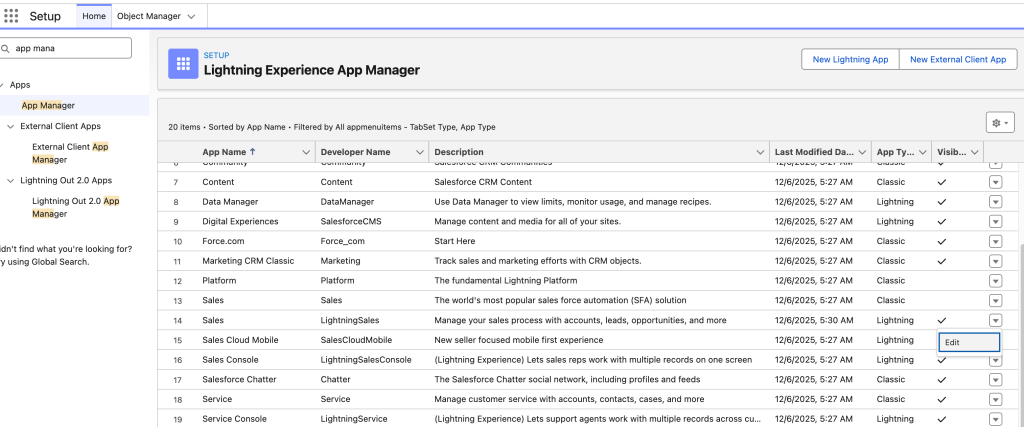
3. Click Edit, in Lightning App Builder, search and Listview Data Export and add it in Utility Items

4. Go to any object list view, like Account, click the Utility Bar app “Listview Data Export,” and then click the simple button to instantly download the data.

The exported data in the Excel file will look like the example below: the dollar symbol for currency fields will be preserved, and the format of datetime fields will remain the same as in Salesforce.

Who Should Use This?
This solution is perfect for:
- Salesforce users who rely heavily on List Views
- Salesforce admins looking for a lightweight, reusable tool
- Teams that frequently export Salesforce data to Excel
- Anyone frustrated by the lack of a native “Export List View” button
A Missing Feature, Now Solved
Salesforce is an incredibly powerful platform, but even small usability gaps can impact productivity.
By enabling direct List View export to Excel, this Utility Bar app fills a long-standing functional gap with a clean, user-friendly approach.
Questions or customization requests for this Salesforce solution? Reach out to us at info@sfgenius.com.